Projects
On This Screen
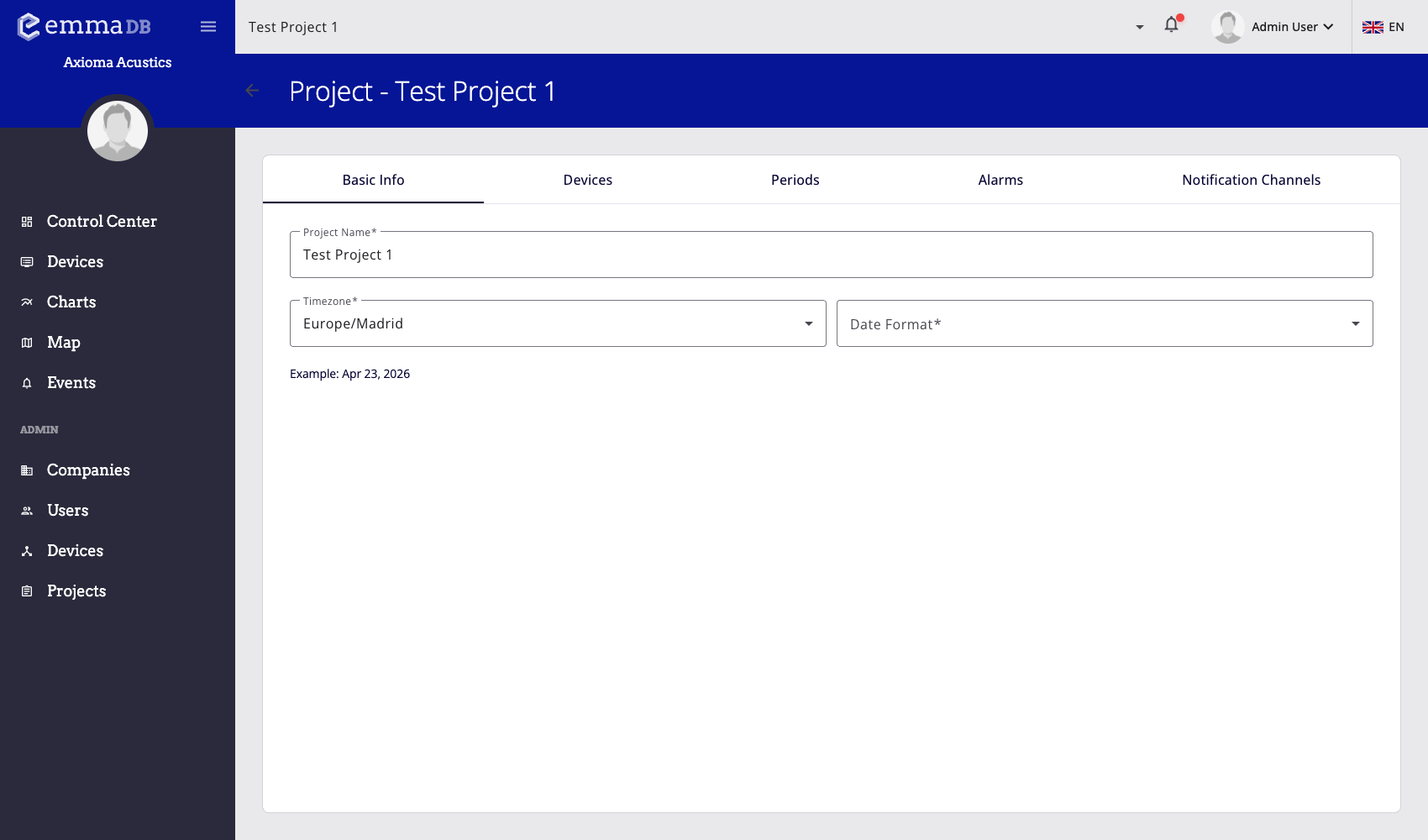
- Move between project tabs for basic info, devices, periods, alarms, and notification channels.
- Enable, disable, test, or remove notification channels from the project configuration table.
- Create a new notification channel from the floating action button when the project needs another destination.
Use Administration > Projects to configure each project. A project defines the timezone and date format, the project devices, the operating periods, shared alarms, and the notification channels used by alarms.
Project Sections
- Project devices explains how to add devices to a project, edit project-specific device settings, activate or deactivate devices, and configure special alarms.
- Periods explains the 24-hour timeline used by scheduled thresholds and period-aware device settings.
- Project alarms explains shared alarm rules, period limits, ignored devices, notifications, acknowledgements, and special alarms.
- Notification channels explains email, SMS, Telegram, Slack, Teams, and web push delivery channels.
Basic Info
The first tab contains the project identity and localization settings:
- Project name identifies the project in selectors, dashboards, and administration lists.
- Timezone controls how project timestamps are interpreted and displayed.
- Date format controls how dates are rendered for users of the project.
- Example previews the selected date format so administrators can validate it before saving.
Set these values before configuring periods or scheduled alarms. Periods and scheduled device actions are easier to review when the project timezone is already correct.
Common Workflow
- Create or open the project.
- Confirm the project name, timezone, and date format.
- Add project devices from Project devices.
- Create operating periods from Periods if alarms or device settings need scheduled limits.
- Create reusable destinations in Notification channels.
- Create shared rules in Project alarms.
Related Pages
- Base devices define the source devices that project devices are based on.
- Device alarms explains how project alarms appear inside device detail pages.
- Event acknowledgements explains the workflow for alarms that require confirmation.