Status
On This Screen
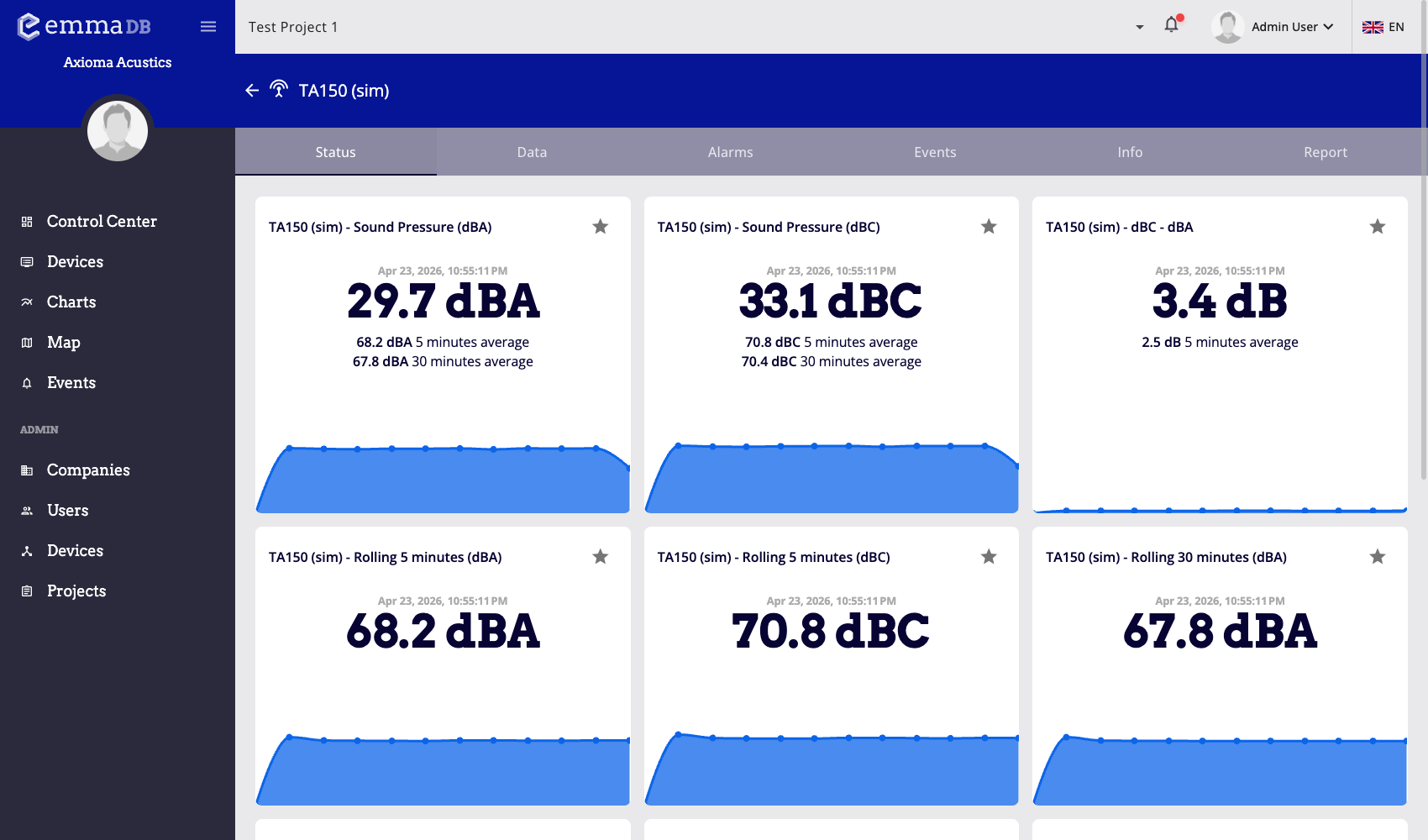
- Open the device and select the Status tab.
- Review the latest cards available for the selected device model and configuration.
- Use the star button on a card to add that metric to a dashboard view.
Use Status when you need the latest operational snapshot without opening a historical chart first.
Status Cards
- The tab renders cards only for fields available on that device.
- Depending on the model and configuration, you may see sound pressure cards, C-weighted values, 1-minute values, 5-second rolling values, 5-minute rolling values, 30-minute rolling values, spectra, battery, cellular signal, and free storage.
- If a metric does not appear here, that usually means the device does not expose that field in its current configuration.
Add a Status Card to a Dashboard View
Each status card can be added to a saved dashboard view.
- Find the metric card you want to reuse on the dashboard.
- Press the star button in the card header.
- Select the dashboard view where the card should appear.
A check mark means that metric is already included in that view. Selecting the same view again removes it.
Related Pages
- Use Data for historical charts and CSV exports.
- Use Dashboard custom widgets to understand how cards appear in dashboard views.