Acknowledgements
On This Screen
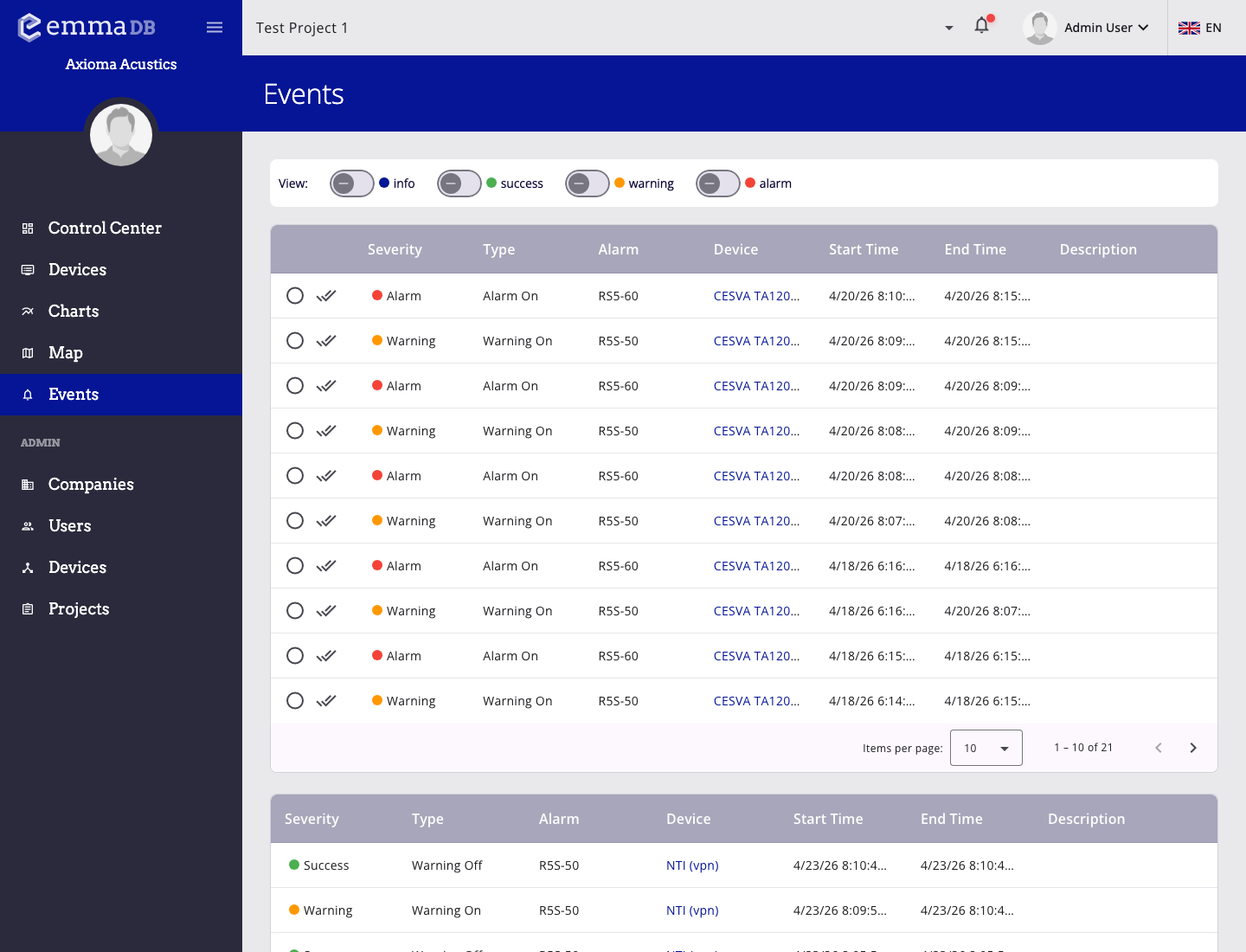
- Filter the event list by severity to focus on the incidents you need to review.
- Use `Ack` for one row or `Ack all` when several pending rows belong to the same incident pattern.
- Review pending events first and then scroll to the resolved section below.
Project-wide event view
- Pending acknowledgment events are shown first.
- Resolved or already acknowledged events are shown in a separate section.
- Both sections use pagination, so you can move through older records without leaving the page.
Filters
Use the filter bar at the top of the page to include or exclude severities:
- info
- success
- warning
- alarm
Changing a filter reloads both the pending and resolved event lists.
Event list columns
Depending on the data available in each row, the event table can show:
- acknowledgment action
- acknowledgment user
- severity
- event type
- related alarm
- device
- start time
- end time
- description
Ack
- Acknowledges the selected event only.
- Use this when you have reviewed one specific incident and want to close its pending acknowledgment state.
Ack all
- Acknowledges all matching pending events from that event context.
- Use this when multiple pending rows represent the same incident pattern and you want to clear them together.
After either action, EMMA reloads the event list so the pending and resolved sections stay up to date.