Custom Widgets
On This Screen
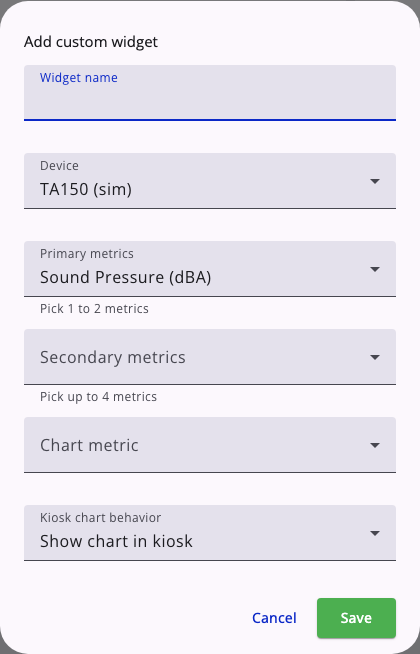
- Give the widget a name that helps users recognize it in the dashboard sidebar.
- Select the device and choose the primary and secondary metrics to display.
- Set the kiosk chart behavior and save the widget when the configuration is ready.
Custom widgets let you build compact, device-specific summary cards for dashboard views.
EMMA has two ways to add content to a saved dashboard view:
- Use the star on a device summary card when you want to add one of the standard device metrics shown on the device Status tab.
- Create a custom widget when you need a manually configured card with selected primary metrics, secondary metrics, and an optional chart.
For the star-based flow, see Adding device widgets to a view.
Creating a custom widget
From the dashboard views sidebar:
- Click
Add Widget. - Choose the device the widget should read from.
- Set an optional widget name.
- Choose
1to2primary metrics. - Choose up to
4secondary metrics. - Optionally choose one chart metric.
- Choose how the chart should behave in kiosk mode.
Metric rules
- Available metric choices are filtered by the selected device.
- Duplicate metric choices are not allowed.
- Some metric types are intentionally excluded from custom widgets, such as overload, underrange, spectrum-only widgets, connected devices, and event stream.
Adding a custom widget to a view
- Use the custom widget list in Switch views to place or remove a custom widget from the selected view.
- Click a widget row to toggle it in the selected view.
- Edit a widget to change its device, metrics, chart, or kiosk behavior.
- Delete a widget if it is no longer needed.
Widget behavior
Each custom widget card can show:
- the device name
- the widget name
- primary metric values
- secondary metric values
- the latest timestamp across the primary metrics
- an optional chart with recent grouped data
- an offline badge when the device is not connected
Widgets also update from live MQTT data where available.