Project Alarms
Project alarms are shared rules configured once at project level. They can apply to multiple devices and appear in each affected device's Project Alarms table.
On This Screen
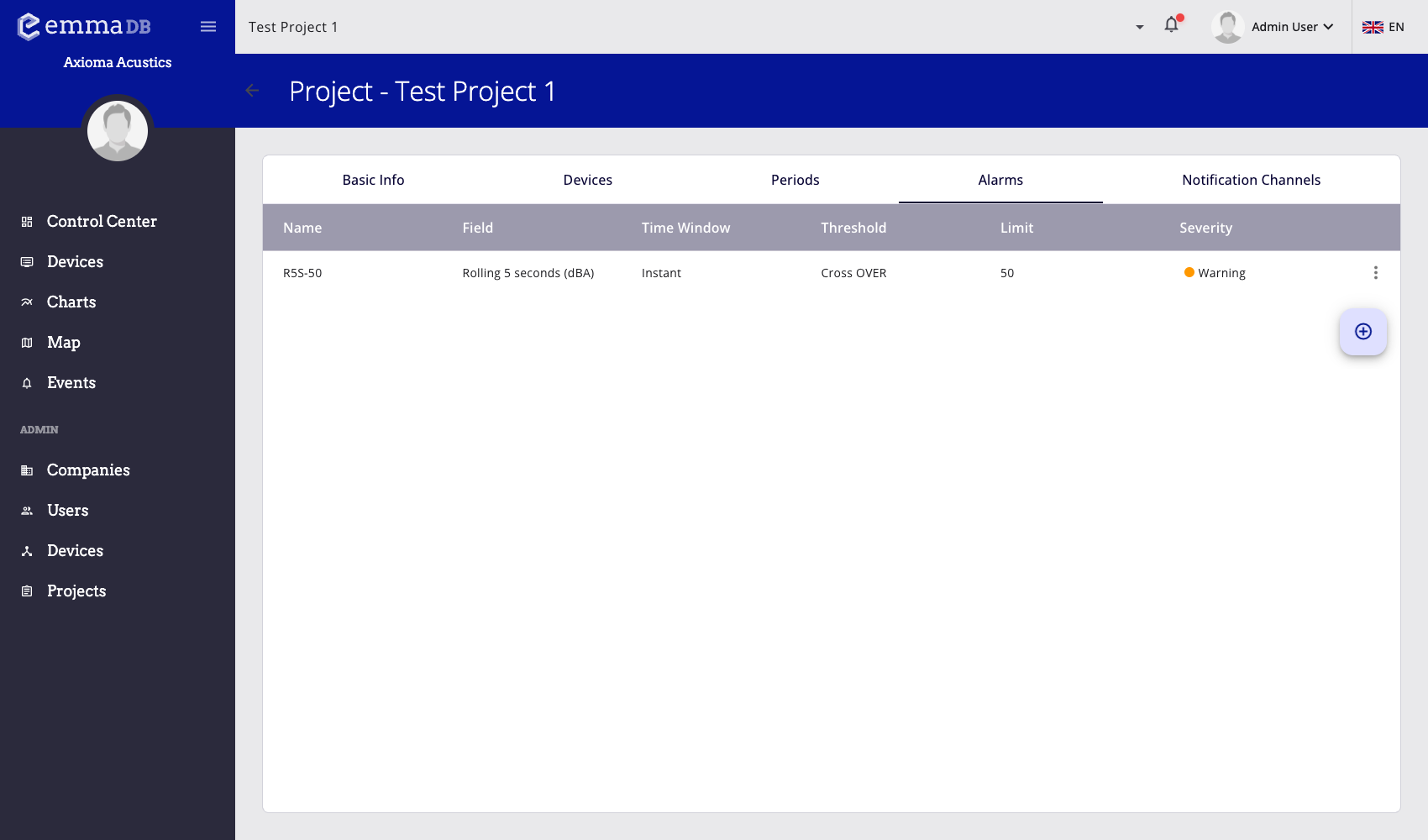
- Review shared alarm rules, fields, time windows, thresholds, limits, and severity.
- Open the row menu to manage an existing project alarm.
- Use the floating action button to add a new project alarm.
When to Use a Project Alarm
Use a project alarm when the same rule should apply to several devices, such as a common sound-pressure limit across a site.
Use a device alarm when the threshold is specific to one sensor, location, or operational context.
Add a Project Alarm
- Open Administration > Projects.
- Select the project.
- Open Alarms.
- Press the floating + button.
- Choose the measured field.
- Configure the condition and limits.
- Select ignored devices if the rule should not apply everywhere.
- Enable notifications and choose notification channels if external delivery is required.
- Enable acknowledgement if operators must confirm matching events.
- Save the alarm.
Alarm Options
- Field selects the data field evaluated by the rule. The alarm affects devices where that field exists.
- Ignored devices excludes selected project devices from the shared rule.
- Period limits use project periods so the threshold can change by schedule.
- Notify enables external delivery.
- Notification channels selects reusable destinations owned by the project.
- Need ACK keeps matching events pending until a user acknowledges them.
Edit, Duplicate, or Delete
From the project alarm table, administrators can open an alarm, duplicate it, or delete it.
Duplicating is useful when several rules share the same field or notification setup but need different thresholds. Deleting a project alarm also removes the shared rule from the affected device pages.
Period Limits
Use period limits when one field has different acceptable values during different parts of the day.
- Create the required project periods.
- Open or create the project alarm.
- Enable period-based limits.
- Enter the limit for each period that should trigger the alarm.
- Save the alarm.
Review the period names carefully. Operators will rely on those labels when investigating why an event was triggered.
Notifications and Acknowledgements
Project alarms can create visible events in EMMA.DB and optionally send external notifications through notification channels.
If Need ACK is enabled, the event remains pending until a user confirms it from Events acknowledgements. Use this for operational alarms that require explicit follow-up.
Special Device Alarms
Connectivity and power-supply monitoring are configured from the project-device editor, not from the standard project alarm table.
- Open the project Devices tab.
- Open the project device.
- Find Special alarms.
- Enable connection monitoring, power-supply monitoring, or both.
- Select notification channels if external delivery is required.
These special alarms cover device state changes such as online/offline and plugged/unplugged.