Views & Layout
On This Screen
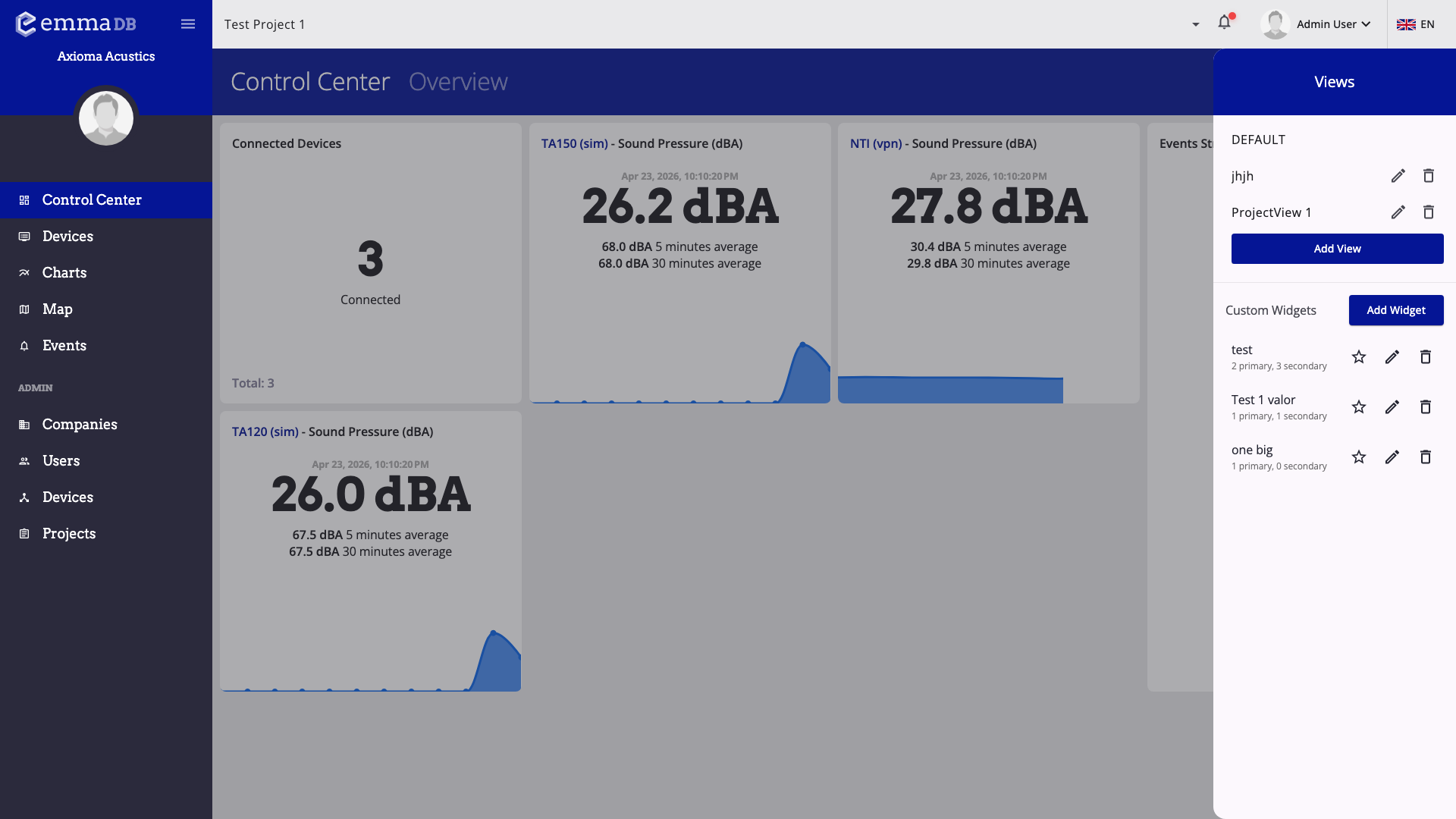
- Open the views sidebar to switch between saved dashboard layouts.
- Create, rename, or delete project views from the right-hand panel.
- Use the widget list and device summary star actions to place widgets into the selected view.
What the dashboard shows
- When no custom view is selected, EMMA shows a default overview with connected devices, a small set of recent device cards, and an event stream panel.
- When a saved view is selected, EMMA renders the widgets and cards saved inside that view.
- The exact cards depend on the devices and metrics available in the current project.
Toolbar actions
Switch viewsopens the side panel with saved views and custom widgets.Editenables layout editing for the selected view.- The presentation button switches kiosk or full-screen mode.
- In kiosk mode, a refresh button is also available.
Saved views
EMMA supports multiple saved dashboard views per project.
- Select the default view to return to the automatic overview.
- Select a saved view to load its widgets and layout.
- Create a new view by entering a view name.
- Rename an existing view.
- Delete a saved view you no longer need.
Adding device widgets to a view
Use this flow for the standard device summary cards that EMMA already shows on the device page.
- Open Devices.
- Open the device you want to add to a dashboard view.
- On the Status tab, find the summary card for the metric you want to show, such as sound pressure, battery, signal, storage, or a rolling value.
- Press the star button on that summary card.
- Select the dashboard view where the widget should appear.
If the metric is already in that view, the menu shows a check mark. Selecting the same view again removes that device metric from the view.
Device widgets added this way are stored in the selected project view and can then be arranged from dashboard edit mode.
Adding custom widgets to a view
Use custom widgets when one standard device card is not enough and you want a compact card with selected primary metrics, secondary metrics, and an optional chart.
- Open Switch views from the dashboard.
- Create or select the target saved view.
- Create the custom widget from the side panel if it does not exist yet.
- Use the widget list or star action in the side panel to include it in the selected view.
Editing a view
Use edit mode when you want to customize the current saved view.
- Drag cards to change their position.
- Resize cards to give more or less space to a widget.
- Enable or disable the
Connected devicesblock. - Enable or disable the
Event streamblock. - Click
Doneto leave edit mode.
Changes to the current view layout are saved back to the project view configuration.