Notification Channels
Notification channels are reusable destinations owned by a project. Project alarms and special device alarms use them to send external notifications.
On This Screen
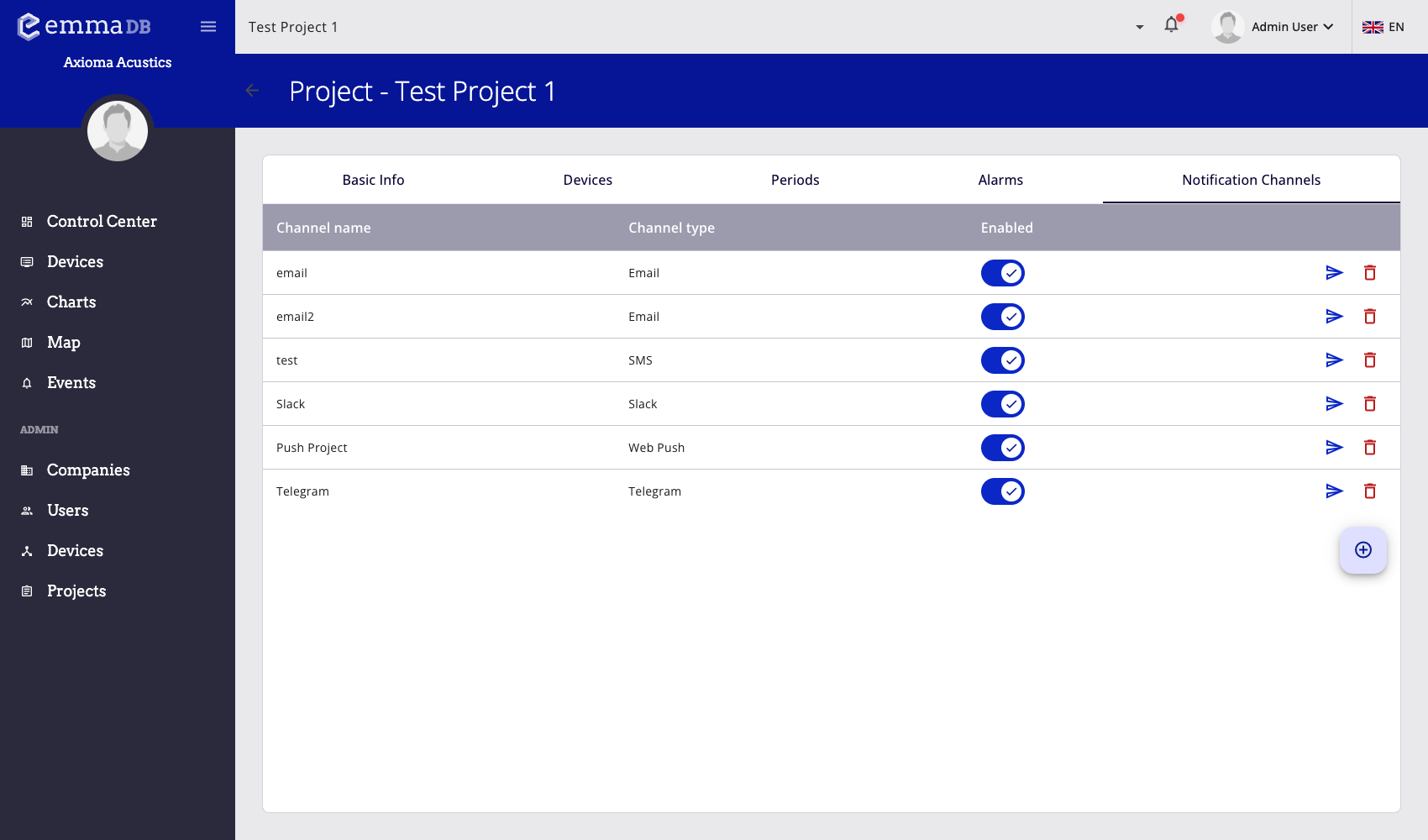
- Open the project and select the Notification Channels tab.
- Review channel name, type, enabled state, test action, and remove action.
- Create a channel from the floating action button before assigning it to alarms.
Channel List
The Notification Channels tab shows:
- channel name
- channel type
- enabled state
- send-test action
- remove action
Open a row to edit the channel. Use the floating + button to add a channel.
Add a Channel
- Open Administration > Projects.
- Select the project.
- Open Notification Channels.
- Press the floating + button.
- Enter a channel name.
- Choose the channel type.
- Complete the type-specific fields.
- Select the notification language when the field is shown.
- Save the channel.
- Use Send test notification to confirm delivery.
Use a name that describes the destination and purpose, such as Operations email, Night shift SMS, or Slack incidents.
Supported Channel Types
- Email sends messages to one or more email recipients.
- SMS sends messages to one or more phone numbers.
- Telegram sends messages to one or more Telegram chat IDs. The bot token is configured on the backend; administrators manage only recipient chat IDs here.
- Slack sends messages to a Slack incoming webhook URL.
- Teams sends messages to a Microsoft Teams webhook URL.
- Web Push creates a browser push channel. Project users enroll their own browsers from the browser notifications flow.
Recipient Lists
Email recipients, phone numbers, and Telegram chat IDs are entered as lists. Use commas or new lines to enter multiple values.
Examples:
operations@example.com, maintenance@example.com+34600000000
+34600000001At least one value is required for email, SMS, and Telegram channels.
Webhook Channels
Slack and Teams channels require a webhook URL. When editing an existing webhook channel, EMMA.DB can show that a secret is already stored. Leave the webhook field blank if the existing secret should remain unchanged.
Replace the webhook URL only when the destination has changed or the previous secret must be rotated.
Language
Email, SMS, Telegram, Slack, and Teams channels include a language selector. Notifications sent through that channel use the selected language.
Web push does not show this field in the channel editor because project users enroll their own browsers from the browser notifications flow.
Enable, Disable, Test, or Remove
- Disable a channel to stop using it without deleting its configuration.
- Enable it again when it should receive notifications.
- Send a test notification after creating or changing a channel.
- Remove a channel only when it should no longer be available to alarms.
Before relying on notifications from project alarms or special device alarms, send a test notification and verify that the destination receives it.
Web Push User Setup
Creating a Web Push channel only makes the destination available to alarms. Each user still needs to enable browser notifications from the toolbar bell icon and allow the browser permission. See Browser Notifications for the user flow, permission states, and bell icon meanings.