Alarms
On This Screen
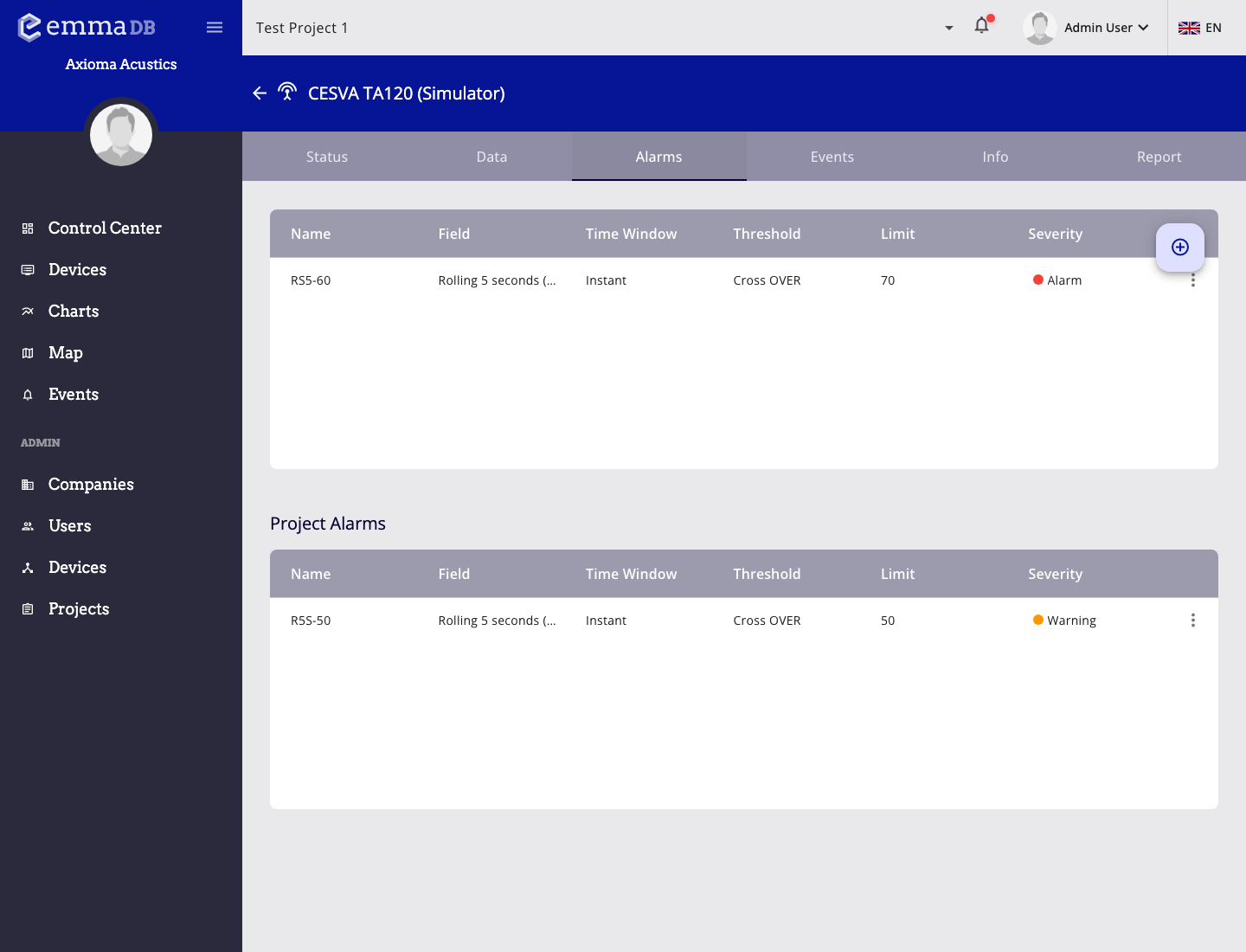
- Review alarm names, fields, time windows, thresholds, limits, and severity.
- Create device-specific alarms from the first alarm table.
- Review project alarms that also apply to the current device.
Use Alarms to manage threshold rules for the current device.
Two Alarm Scopes
- The first table contains alarms created specifically for this device.
- The second table contains project alarms that also apply to this device.
Add a Device Alarm
- Open Devices.
- Select the device you want to monitor.
- Open the Alarms tab.
- In the first alarm table, press the floating + button.
- Fill in the alarm details and press Add.
The new alarm applies only to the selected device. If the same rule should apply to several devices, create a project alarm from Administration > Projects > Project Alarms instead.
Alarm Detail
- Name: short name shown in alarm tables, events, dashboards, and charts.
- Field: metric watched by the alarm. Device alarms only offer fields supported by the selected device.
- Description: optional context for operators, for example the reason for the limit or what to check first.
Threshold
- Time window controls the data used by the rule.
- Instant checks the latest value.
- 5-minute bucket checks the grouped 5-minute value and is the right choice for limits based on averaged or rolling data.
- Threshold defines whether the alarm fires when the value crosses above or below the limit.
- Limit is the numeric value that triggers the rule.
- Severity controls how the resulting event is classified: info, success, warning, or alarm.
Period-Specific Limits
If the project has configured periods, the alarm can use either:
- Whole day: one limit is used for the full day.
- Periods: each project period gets its own limit.
Use period limits when the acceptable value changes by schedule, for example day versus night. These limits are also rendered in compatible device data charts so users can compare measured values with the active threshold.
Notifications and Acknowledgements
- Silent creates a quieter rule for cases that should not interrupt users visually.
- Need ACK keeps matching events pending until a user acknowledges them.
- Notify is available to administrators and enables external notification delivery.
- Notification channels selects the project channels that receive the notification when Notify is enabled.
If no notification channels are available, create them in Administration > Projects > Notification Channels before relying on external delivery.
Edit, Duplicate, or Delete
- Click an alarm row to open it in the same side panel editor.
- Use Duplicate from the row menu to create a copy with the same configuration, then adjust the name or limit.
- Use Delete from the row menu to remove the alarm.
- If a device alarm still has active events, EMMA shows a confirmation before deleting it.
Project Alarms Shown on a Device
The Project Alarms table shows project-level alarms that also apply to the current device. You can open, duplicate, or delete them from this screen, but remember that changes affect the project-level rule, not only this device.